Guides
AI invitation card maker: make an invitation by asking Claude, ChatGPT or your own AI app
AI image tools can draw a pretty card, but they often garble names and dates. A better way is to let your AI app do the searching and typing on a real invitation design, while you keep the final say. Here is how to connect it, what to ask, and what it will never do without you.
The FunctionCard team
· 14 min read
Most people searching for an AI invitation card maker want one thing: to type a sentence like "Riya's first birthday, 18 January, our terrace in Indore" and get a card back. AI apps are good at that kind of request. Where they struggle is the small print that matters most on an invitation: a name spelt the way the family spells it, the right muhurat time, a venue guests can find. This guide shows a way of working where your AI app does the searching and the typing, a real invitation design carries the result, and you check and send it.
Quick answer
What is the best way to make an invitation card with AI?
Connect your AI app, such as Claude or ChatGPT, to FunctionCard once, using the address on the FunctionCard with AI page. Then ask it for designs or to start an invitation with your names, date and venue. It opens a real design in the editor with your details filled in. You check every word, press Preview, and publish on the website yourself.
1,771
designs your AI can search
165
occasions to ask about
53
languages for the finished card
1,150
music tracks to add in the editor
The idea
What is an AI invitation card maker, really?
The phrase covers two quite different tools. The first kind is an image generator: you describe a card and it paints a new picture, words included. The second kind uses AI to drive a proper invitation maker: the AI understands your request, finds a fitting design and fills in the details, and the invitation itself is built by software that handles text, dates and maps precisely. FunctionCard works the second way, through a connector your AI app can use.
FunctionCard
- Your AI searches real designs made for the occasion, in the store's own categories
- Names, date and venue go into proper fields, so they are spelt exactly as you typed them
- The result is a live invitation link with music, a map, Add to calendar and RSVP
- You can change any word later in the editor, and guests see it at the same link
An image generator is fine for a mood board or a party poster where nobody needs to read a date. For an invitation that a hundred relatives will rely on, the safer split is simple: let the AI do the thinking and typing, and let a real invitation do the displaying.
Your AI app
Can ChatGPT or Claude make an invitation card?
On their own, general AI apps can write the wording and, in some cases, draw a picture. What they don't have is a library of invitation designs, an RSVP system or a way to send personal links to guests. Connect them to FunctionCard and they gain those through FunctionCard's connector, which follows an open standard called MCP. FunctionCard's setup page has steps for Claude, ChatGPT, Copilot, Gemini and other apps, checked against each app's own help pages.
One connection, then just ask
You add FunctionCard's address to your AI app once. After that, a request like "Show me haldi designs in yellow and green" goes to the real store and comes back with real designs and links you can open. Anything that is free on FunctionCard is free through your AI too.
Setup
How do you connect your AI app to FunctionCard?
There are two addresses. One lets your AI browse designs, occasions and prices with no sign-in. The other adds your own account: your drafts, your invitations, RSVPs and guests. Pick the one you need, then add it to your AI app as a connector.
Quick pick
Which address should you add?
Tap the one that sounds like you.
Step by step
Connect your AI app to FunctionCard
A one-time setup of a few minutes. Every app's menus look a little different; the setup page has the exact steps for each.
You'll need
- Your AI app, signed in
- A FunctionCard account, for the account address
- The address you picked
Step 1 of 5
Open the setup page
Go to FunctionCard with AI. It shows both addresses with a copy button, and a section for each AI app with its own steps.
Open itCopy the browsing address, or the account address if you want your AI to work with your own drafts and invitations.
Tip: Not sure? The account address does everything the browsing one does, plus your account.
See it in the help centreIn your AI app, find where you add a connector, often called a custom connector or an MCP server. Paste the address and save.
See it in the help centreFor the account address, the app opens FunctionCard's sign-in. Sign in, read what the app is asking for, and press Allow. Your password stays with FunctionCard and never goes to the AI app.
See it in the help centreTry something small, such as "Show me housewarming designs with a kalash". If designs come back with links, the connection works.
Tip: If your AI never asked you to sign in, you probably added the browsing address. Add the account address as well.
Open it
What to type
What should you ask? Prompts that work well
The best requests read like instructions to a helpful cousin: the occasion, the names, the date and time, the city or venue, the language, and a hint of the look you like. You don't need special wording. Copy any of these, change the details and send them to your AI app.
Copy-ready prompts for your AI app
Show me Tamil wedding invitation designs with a temple or kolam feel, in red and gold.
Find a first birthday design with a jungle theme and room for one baby photo.
Start a griha pravesh invitation for the Joshi family on 8 February 2027 at 9:30 am in Nashik, in Marathi.
Start a wedding invitation for Ananya and Kabir with a haldi on 14 Jan, a sangeet on 14 Jan evening and the wedding on 15 Jan 2027 in Udaipur.
What would one invitation with haldi, mehndi, wedding and reception cost on FunctionCard?
Show me three simple designs for a 50th birthday dinner, nothing too colourful.
My anniversary invitation is still a draft. What do I need to do before I can send it?
How many guests have said yes to the reception on my wedding invitation so far?
Add Meena Kulkarni (party of 4) and Arjun Rao to my wedding invitation, invited to the wedding and reception only.
Say the language in the request
If the card should be in Hindi, Marathi, Gujarati or another language, say so in the same sentence. Afterwards, the Card language choice in Details switches the design's own words, dates and the guests' buttons, and the right fonts load as you type.
Start to finish
How do you go from a chat to a published invitation?
Your AI app gets you most of the way, quickly. The last stretch, checking, publishing and paying, always happens on the FunctionCard website, by you. That is a deliberate rule: connecting an AI makes FunctionCard more convenient, never a way around publishing.
Step by step
Turn an AI request into an invitation guests can open
Plan on about half an hour, most of it spent checking details with the family.
You'll need
- Names exactly as they should appear
- Date, time and venue for each function
- A Google Maps link for each venue
- UPI, a card or netbanking to publish
Step 1 of 7
Ask your AI for designs
Describe the occasion and the look. Your AI searches the store and comes back with designs and links. Open a few on your phone to watch them play.
Browse designsGive it the names, date, time and venue. It opens the design in the editor with those details filled in, as a private draft in your account.
See it in the help centreIn the editor, open Details and read the Names, Date, Time, Venue and Map link slowly. Add or reorder events under Functions. Text on every page that comes from these fields updates as you type.
Tip: An AI can mishear a date or guess a spelling. Check against what the family actually wrote down.
See it in the help centreReplace the sample photo, choose a track in Music or record a Voice message, and turn on Open with an envelope. These are yours to choose; the AI only starts the card.
See it in the help centrePress Preview in the top bar and watch the whole invitation as a guest would. It carries a watermark until you publish.
See it in the help centrePress Publish, look through Before you publish, choose Starter, Family or Business and press Pay … and publish. You're live! shows your link, ready to share.
See it in the help centreOnce the invitation is published, ask your AI how many have replied for each function, or have it add guests with their personal links. Sending and emailing stay with you.
See it in the help centre
Try it live
This is what your guests see
A live wedding design of the kind your AI app can find and start for you: tap the envelope, listen to the music, then scroll to each function, the map and the RSVP.
- 1Tap the envelopeIt opens on the guest's screen, with your wax seal and monogram.
- 2Your music beginsTurn the sound on: the song starts as the card unfolds.
- 3The pages come aliveScroll through animated pages, with petals, confetti or lanterns.
Limits
What can the AI do, and what will it never do?
The connector gives your AI app a short list of jobs, and leaves everything with consequences to you. It can never publish, pay, delete, send messages to your guests or change an invitation that is already live.
Who does what when your AI app is connected
| Feature | FunctionCard | Your AI app | You, on the website |
|---|---|---|---|
| Search designs, occasions and prices | |||
| Open a design with your names, date and venue | |||
| Start a private draft | |||
| Publish an invitation and pay | |||
| Show RSVP totals for each function | Paid invitations | ||
| Add guests with personal links | Paid invitations | ||
| Email the invitation to guests | |||
| Download PDF, pictures or video | After publishing | ||
| Change a live invitation | Free, with Update |
The first column is what a FunctionCard invitation can do in all; the other two show who can do each part while an AI app is connected.
What the AI app actually sees
Only what its tools return for your questions: designs and prices and, if you signed in, your invitations' names, dates and venues, reply totals, and guests' names and personal links on paid invitations. Guests' email addresses and phone numbers are never sent to it.
Cost
Is there a free AI invitation card maker?
Connecting an AI app to FunctionCard costs nothing. Searching designs, comparing prices and starting drafts are free, exactly as they are on the website, and so is designing and previewing in the editor after signing in. You pay once only when you publish, and nothing renews. The AI never spends money for you, and it cannot make a paid feature free.
Quick pick
Which plan would you publish on?
Tap the one that sounds like you.
Occasions
Which occasions can you ask your AI about?
Anything the store covers, which is 165 occasions in all: weddings and every function around them, birthdays from a first to a 75th, griha pravesh, naming ceremonies, anniversaries, pujas and office parties. Asking with the occasion's own name, such as "mehndi", "namkaran" or "sakharpuda", helps it find designs made for that ceremony rather than a generic party card.
Designs an AI request might bring back
See all
Royal Durbar

Marigold Haldi
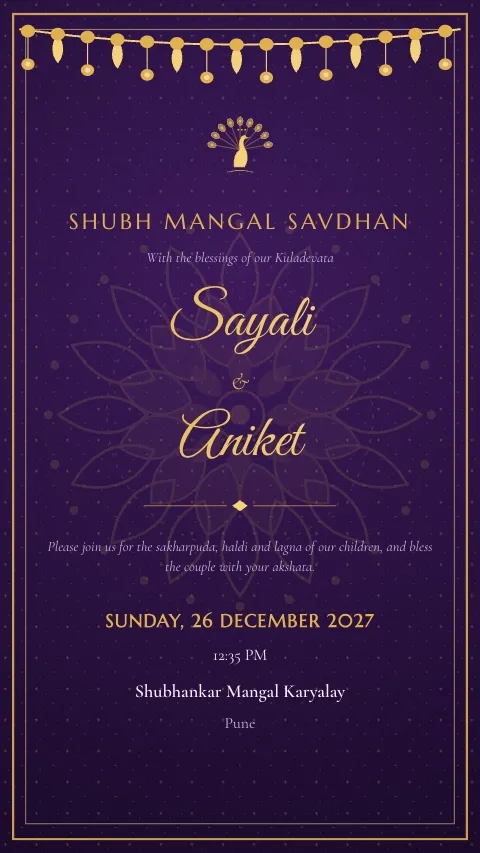
Paithani Peacock
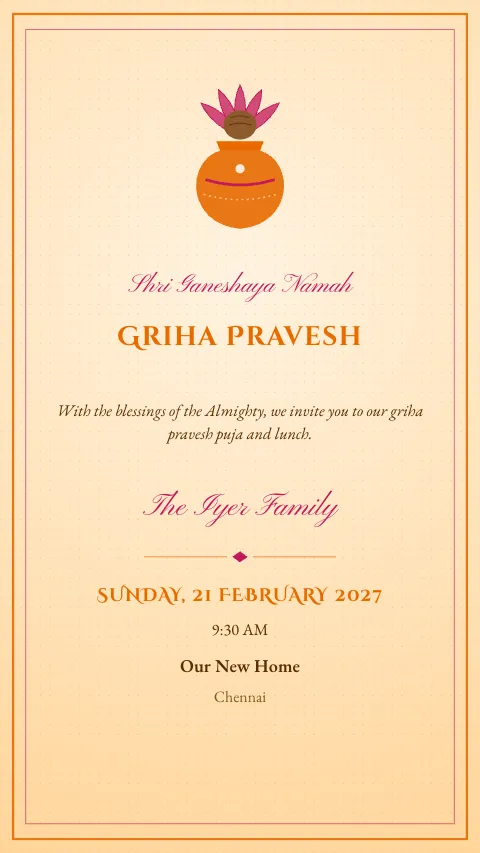
Kalash Welcome
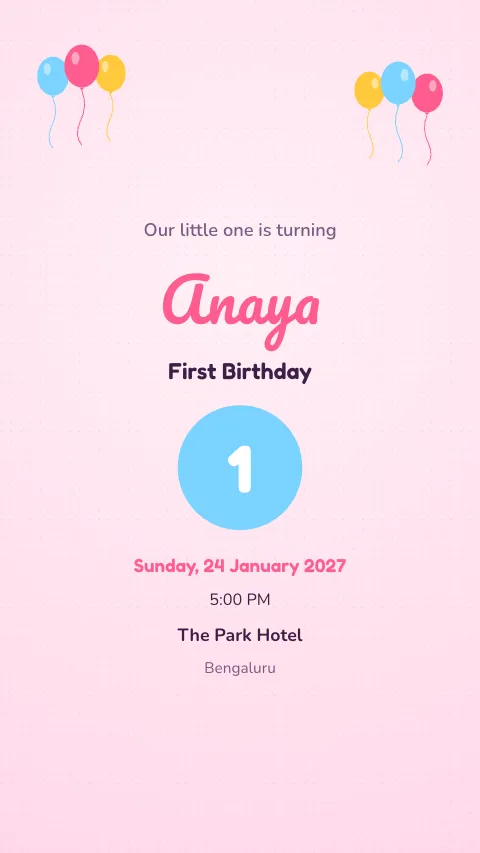
Little One
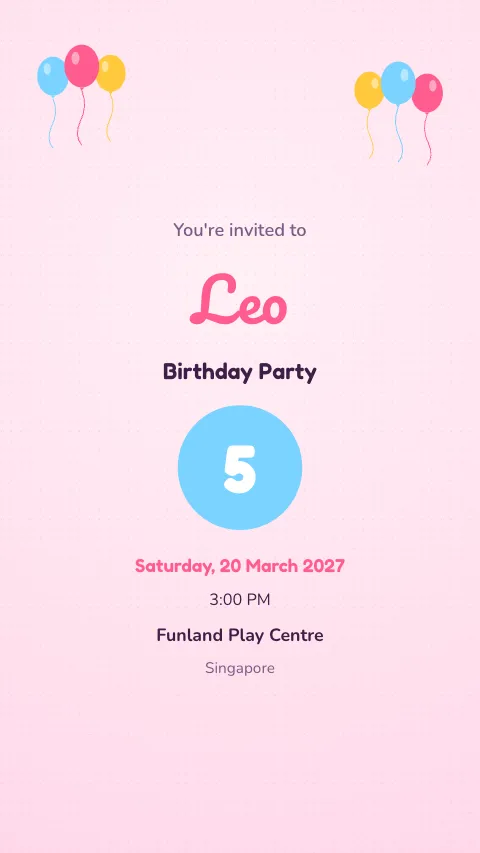
Balloon Bash

Golden Fifty

Sixty Blessings
Free to customise: change every word, colour, photo and the music, then share one link.
Prefer to browse yourself? Open the wedding designs, the housewarming designs or every design. Our panel-by-panel tour of the invitation card maker covers the editor in depth, and the free message writer drafts wording if you would rather not ask an AI for it.
Control
Is it safe to connect an AI app to your invitations?
You sign in on FunctionCard's own page and see exactly what the app is asking for before you allow it, so your password is never shared with the AI app. The app works only through the connector's tools, which cannot publish, pay, delete, email guests or download. And you can see and cut every connection from your account at any time.
- 1See your connected appsOpen Account → Connected AI apps. Each app shows its name and web address, what it can use, and when it was connected and last used.
- 2Disconnect one appFind the app and press Disconnect. It can no longer reach your account; connect it again from the AI app if you change your mind.
- 3Disconnect them allSign out of all other devices in Privacy & security disconnects every AI app too. You can also remove the connector inside the AI app itself.
Honest limits
The connector works with FunctionCard's ready designs; it doesn't paint a new picture from your prompt. FunctionCard doesn't print or post cards either. If elders want paper, download the print PDF after publishing and take it to a local press.
Checks
What should you check before sending an AI-started invitation?
Checklist
Before you press Publish
0 of 8 done · ticks stay in this browser
Words
Details
Language
Design
Replies
Key takeaways
- An AI image generator paints a picture; an AI connected to FunctionCard fills a real invitation design with your exact details.
- Connect once from the FunctionCard with AI page: the browsing address needs no sign-in, the account address works with your drafts.
- Your AI can search designs, start private drafts and, on paid invitations, show replies and add guests.
- It can never publish, pay, delete, email guests, download or change a live invitation; those stay with you on the website.
- Connecting is free; you pay once only when you publish, starting at ₹399 plus GST.
Questions people ask
Which is the best AI invitation card maker?
Can I make an invitation with AI for free?
Can ChatGPT make a wedding invitation card?
What is a good AI prompt for a wedding invitation?
Can the AI send the invitation to my guests?
Does the AI app see my guests' phone numbers?
How do I stop an AI app from reaching my account?
Free to connect · free to design and preview · pay once to publish
Connect your AI app, or start with a design
Read next