Guides
How to make a wedding invitation video from your card, step by step
A wedding invitation video is a card that plays by itself: the envelope opens, the pages turn, the shehnai starts. Here is how to make one from a live FunctionCard design, how to plan it so every page is readable, and when to send the link instead.
The FunctionCard team
· 14 min read
In most families, the wedding invitation now travels twice. Once as a message to each guest, and once as something that plays on a phone screen: a WhatsApp Status, a Reel, a clip forwarded to the bua's family group. If you are wondering how to make a wedding invitation video without hiring an editor or learning a video app, the simplest route is to design the card first and let the card become the video. This guide shows exactly how that works in FunctionCard, and how to plan the card so the video looks good.
Quick answer
How do you make a wedding invitation video?
Design your wedding card in FunctionCard with the envelope, effects, music and an optional voice message. Then open the invitation's dashboard, go to Downloads and, under Video (MP4), press Make video. Keep the tab open while it records. You get an MP4 of up to 60 seconds, ready for WhatsApp Status and Reels, ending on your invitation link once it is published.
1,771
designs that can become a video
1,150
royalty-free tracks for the soundtrack
19
effects such as petals and confetti
53
languages the card can be in
The basics
What is a wedding invitation video made from a card?
It is a recording of your invitation opening, as a guest would see it, saved as an MP4 file. The closed envelope shows for a moment, then opens; each page of your card follows with its own animations; your falling petals or confetti keep moving; the voice message plays, then the music. You do not cut clips on a timeline or line up text by hand. Whatever you change on the card, the next video you make shows it.
One design, two jobs
The same design works as a live invitation link, with the map, the calendar button and the RSVP, and as a video for places where a link can't play, such as WhatsApp Status or an Instagram Reel. You design once and use both.
It is not a cinematic film shot by a videographer. It is closer to an animated invitation: names, dates, the programme and the family's blessing, set to music, ready the same afternoon.
Step by step
How do you make a wedding invitation video online, step by step?
Most of the work is the card itself. If you already have a wedding card in FunctionCard, skip to the second set of steps. If you are starting fresh, our wedding card maker guide goes deeper into designs, details and functions; the steps below cover what matters for the video.
Step by step
Get your card ready to become a video
Designing and previewing are free once you sign in. Nothing is paid until you publish.
You'll need
- The couple's names and the date of each function
- A couple photo, if the design takes one
- A song you have the right to use, or pick one from the library
- A short voice note from the family (optional)
Step 1 of 8
Pick a design that moves
Open the wedding designs and open a few to watch them play, with their envelope and music. Choose one whose pages are clear on a phone screen.
See it in the help centreFor WhatsApp Status and Reels, use Phone card (1080 × 1920 pixels), which fills a phone screen. You can switch later with Resize in the editor's top bar.
Tip: Square suits an Instagram or Facebook post; Classic card (5 × 7 inches) is for printing.
See it in the help centrePress Customise this card, open Details and type the names, date, time and venue once. Add each function, from haldi to reception, under Functions.
See it in the help centreOpen Envelope, turn on Open with an envelope, choose a Design and add a Monogram on the seal, such as A&R. The video opens on this envelope.
See it in the help centreOpen Effects, choose something under Falling and floating, such as petals, and pick an Animation style for the whole card. To change one item, select it and use its Animation section.
See it in the help centreOpen Music, play a few tracks and press Use. Under Playing on your card, set Start from so the song begins at its best moment, and the Volume.
See it in the help centreIn Music, find Voice message. Fill in Who is speaking?, press Record, speak, then Stop and Use it. It plays before the music.
Tip: Keep it short: a voice message makes the pages stay on screen longer, and the whole video is capped at 60 seconds.
See it in the help centrePress Preview in the top bar to watch the card as guests will. What you see here is what the video records.
See it in the help centre
Step by step
Download the MP4 video of your card
You can make a video before publishing to check it; it will carry a Preview watermark. After you publish, it is clean and ends on your invitation link.
You'll need
- Chrome or Edge on a computer, or Safari on an iPhone or Mac, updated
- Your finished design in My designs
Step 1 of 5
Open the invitation's dashboard
In My designs, choose Guests & RSVPs from the design's ⋯ menu. Right after publishing, Guests, RSVPs & email opens it too.
See it in the help centreOpen Downloads. Under Video (MP4) you'll see how many seconds your video will be and what it includes.
See it in the help centrePress Make video and keep the tab open while it records. A progress bar shows each stage, and you can Cancel.
See it in the help centreThe MP4 lands in your downloads folder. Watch it once, with sound, before you send it anywhere.
Put it on your WhatsApp Status, share it as a Reel, or send it in a chat alongside the invitation link.
See it in the help centre
If the video comes out silent
Some browsers can't add sound to a video, or save it in a sound format some phones can't play. FunctionCard tells you when that happens. Make the video in Chrome or Safari and the sound will play on WhatsApp.
Timing
How long should a wedding invitation video be, and how is the length decided?
Short enough to watch in one go, long enough to read. FunctionCard plans the length for you from the card: each page stays on screen long enough for its animations to finish and for a guest to read it, usually between three and a half and eight seconds. The video never runs past 60 seconds, which is how long a WhatsApp Status can be. If a card has many pages, every page is shortened evenly so the whole thing still fits.
What a guest sees, second by second
The opening
The closed envelope with your monogram on the seal shows for about a second, then opens.
Voice message
If you recorded one, it plays first, over the opening pages. Pages stay longer so the message can finish.
The music
Your track starts from the point you chose in Start from, at the volume you set.
Each page
Pages turn one after another, each held for a few seconds, with your effects falling throughout.
The end card
Once your invitation is live, the last seconds show your invitation link, so anyone watching knows where to RSVP.
That gives you a simple rule for planning. Four to six pages make a comfortable video: a cover with the couple's names, an invitation line from the family, the programme of functions, a photo page, and a closing blessing. A ten-page card still becomes a video, but each page gets less time, and long paragraphs become hard to read before they move on.
Planning
What should a wedding invitation video include?
A video is watched once, quickly, often with the sound low. So the most important lines must be readable in a couple of seconds: who is getting married, when, and where. Everything else, such as the full programme with timings, the dress code for the haldi and the venue's map, is better left to the invitation link, where guests can read at their own pace and tap through.
Checklist
Before you press Make video
0 of 9 done · ticks stay in this browser
The words
The design
The sound
The finish
A personal touch
What can the family say in the voice message?
A voice message turns a pretty video into a personal one. Hearing Dadi's voice say the couple's names does something a printed line can't. Keep it to two or three sentences, say who is speaking in Who is speaking?, and record it on a phone held close, away from the pressure cooker. Here are a few short scripts to start from; change any word.
Short voice message scripts in English
Namaste. This is Nani speaking. Our Riya is getting married to Kabir on the 14th of February, and our home will not feel complete without you. Please come and bless them.
Hello, everyone. We are Meera's parents. After many months of planning, the day is almost here. We would be so happy to see you at every function, from the haldi to the reception.
Assalamu alaikum. This is Ayaan's father. With Allah's grace, Ayaan and Sana's nikah is on the 8th of March. Your duas and your presence would mean the world to our family.
Sat Sri Akal. This is Harleen's dadi. The Anand Karaj is at our gurdwara on Sunday morning. Come early, have langar with us, and give the couple your blessings.
Short voice message scripts in Hindi
नमस्ते, मैं रिया की दादी बोल रही हूँ। हमारे घर में शादी की शहनाई बजने वाली है। आप सपरिवार ज़रूर आइए और बच्चों को आशीर्वाद दीजिए।
हम आरव के माता-पिता हैं। चौदह फरवरी को आरव और निधि का विवाह है। आपके बिना यह खुशी अधूरी रहेगी, इसलिए हर कार्यक्रम में ज़रूर पधारें।
प्रणाम, मैं नानाजी बोल रहा हूँ। हल्दी से लेकर रिसेप्शन तक, हर रस्म में हमें आपका इंतज़ार रहेगा। कार्ड में सारी जानकारी दी गई है।
Want help with the written lines on the card too? The free invitation message writer suggests wording in English, Hindi, Marathi and Hinglish, and our wedding invitation messages has formal, couple-led and WhatsApp versions to copy.
Designs
Which wedding designs make the best invitation videos?
Designs with one strong picture per page and bold lettering read best when pages move by on their own. Dark backgrounds with gold make falling petals stand out. Choose by ceremony first, then by how it plays.
Wedding designs to turn into a video
See all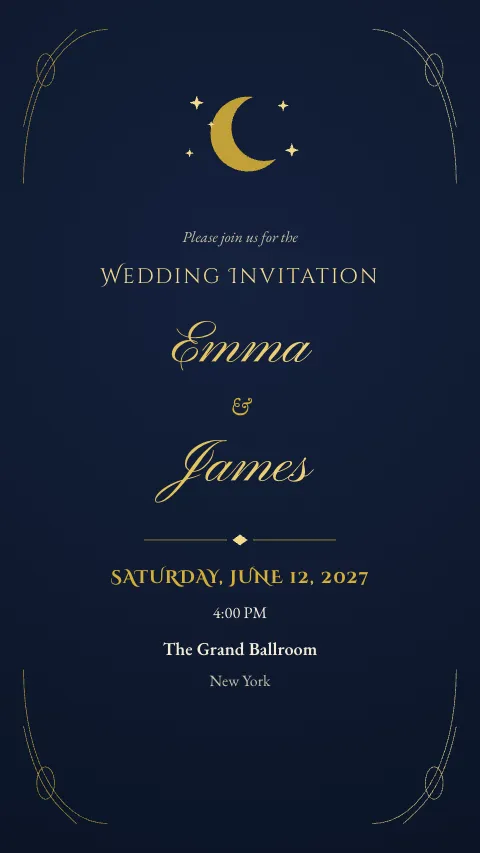
Midnight Gold
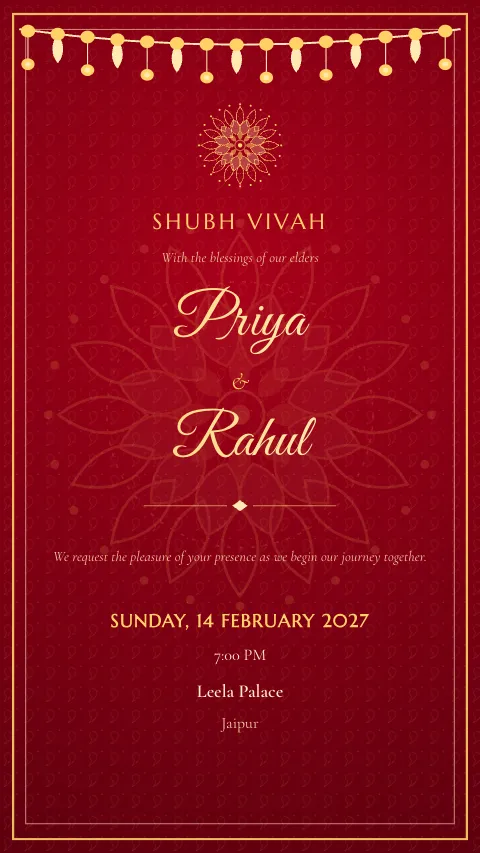
Crimson Toran
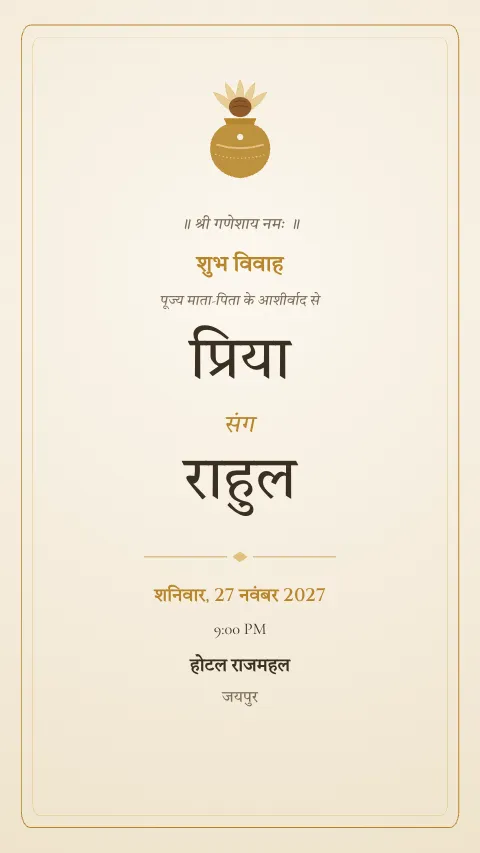
Mangal Kalash
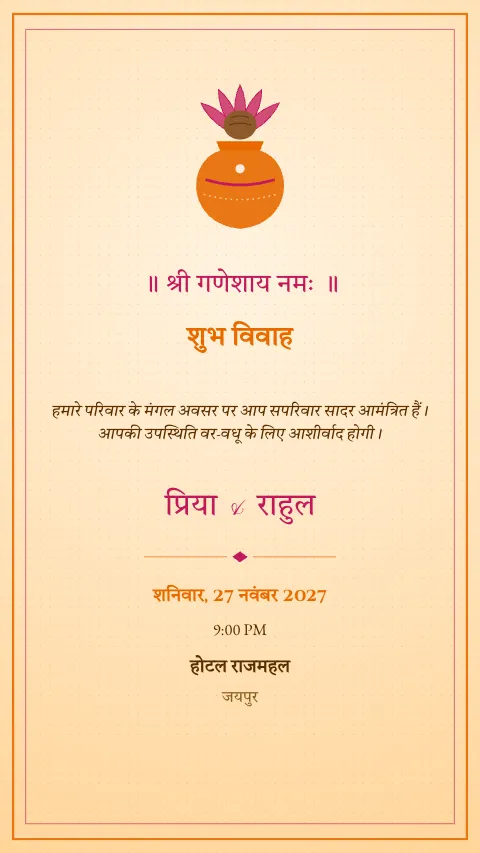
Genda Phool
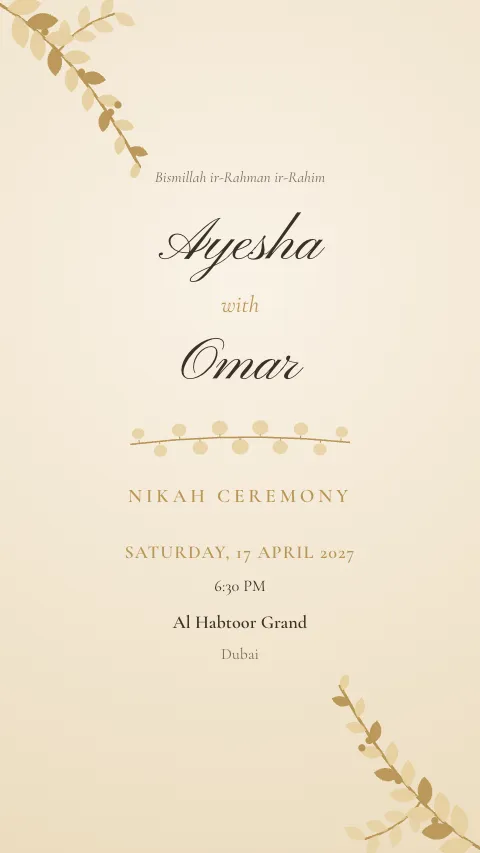
Jasmine Nikah
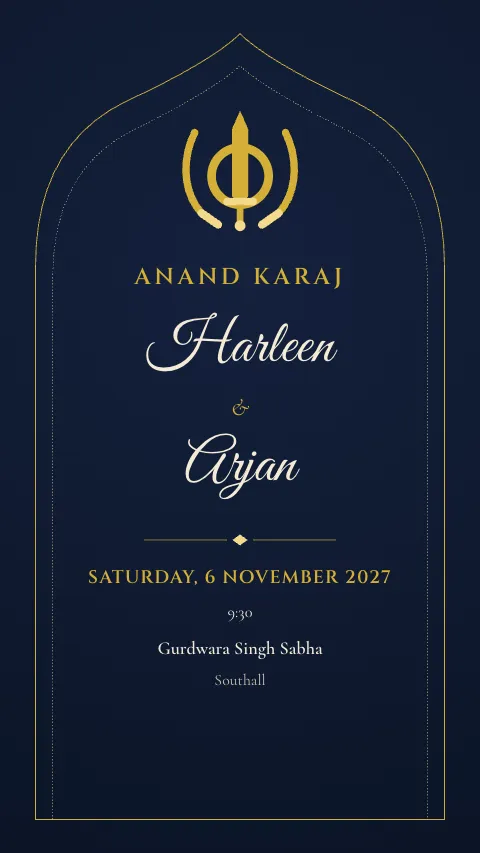
Gurdwara Blue
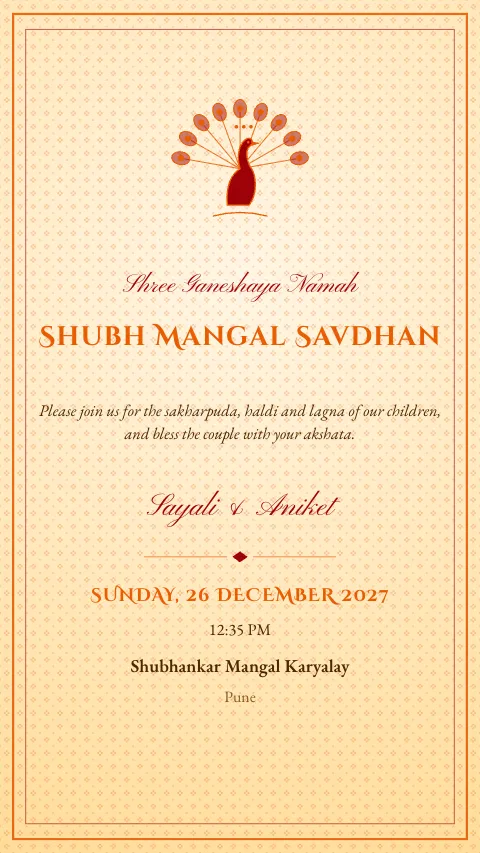
Nauvari Saffron
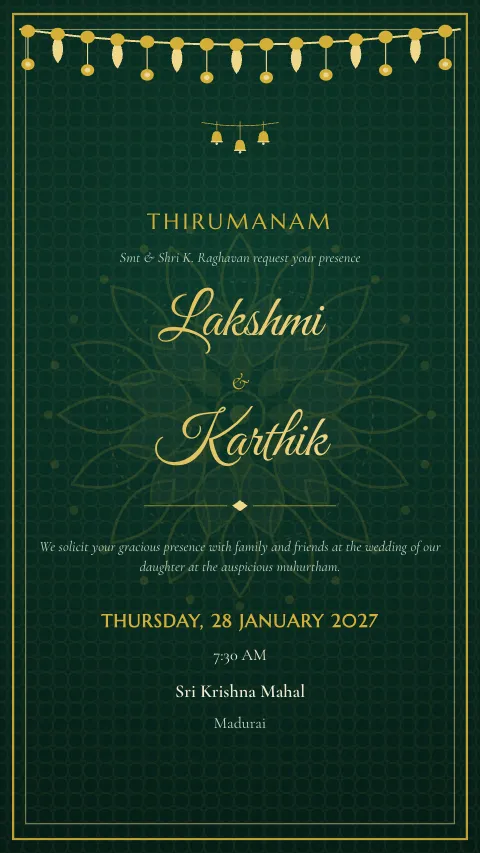
Mallipoo Gold
Free to customise: change every word, colour, photo and the music, then share one link.
Try it live
This is what your guests see
Tap the envelope to open this design with its music. A video of it records exactly this: the envelope, each page in turn and the effects, ending on the invitation link.
- 1Tap the envelopeIt opens on the guest's screen, with your wax seal and monogram.
- 2Your music beginsTurn the sound on: the song starts as the card unfolds.
- 3The pages come aliveScroll through animated pages, with petals, confetti or lanterns.
Cost
Can you make a wedding invitation video for free?
You can design the card, preview it and make a video of it without paying, after signing in free. Until you publish, the video carries a Preview watermark, which is fine for checking timing and music with the family but not for sending. Publishing removes the watermark from every download and adds your invitation link at the end of the video. You pay once, nothing renews, and every plan has every feature.
Quick pick
Which plan covers your wedding video?
Tap the one that sounds like you.
Changed something after making the video?
A video is a file, so it doesn't change by itself. After any edit, press Update and Publish changes for the link, then make a fresh video from Downloads and post the new one.
Sending
Should you send the video, the link, or both?
Both, each where it works best. The video is for places a link can't play: your WhatsApp Status, a Reel, a family group where people like something to watch. The link is the invitation itself: guests can open the map, add each function to their calendar and RSVP, and it always shows the latest timings. Our comparison of a wedding invitation video and an animated link goes through file size, editing and replies in detail, so this guide won't repeat it.
The card video, honestly
Good
Plays by itself on WhatsApp Status and Reels, where a link can't.
Carries the envelope, animations, effects, voice message and music in one file.
Ends on your invitation link once it is published, so watchers know where to reply.
Comes from the same design, so the video and the link always match in look.
Watch out
A file can't be corrected after it is forwarded; you make and post a new one.
Guests can't RSVP, open a map or add a function to their calendar from a video.
It runs to 60 seconds at most, so a card with many pages moves faster.
It needs Chrome or Edge on a computer, or Safari on an iPhone or Mac, to make.
To greet each guest by name, send the link rather than the video: add your guests in the dashboard's Guests tab and use the WhatsApp button next to each name. The steps are in Share your invitation on WhatsApp.
Honest limits
What this kind of video can't do
FunctionCard records your card; it isn't a full video editor. You can't drop in clips from your pre-wedding shoot, cut to the beat of a song, or add a scrolling list of family names like film credits. If you want that kind of cinematic invitation, a videographer or a video editing app is the better choice, and you can still send the FunctionCard link alongside it for the RSVPs. Upload only music you own or are licensed to share; every track in the library is royalty-free, as set out in the music declaration.
Key takeaways
- The quickest way to make a wedding invitation video is to design the card and let it become the video: Downloads, then Make video.
- Use the Phone card size for WhatsApp Status and Reels; turn on the envelope, effects, music and an optional voice message.
- The video is planned from your card and never runs past 60 seconds; four to six readable pages work best.
- Make and check it free with a watermark; publish to get a clean video that ends on your invitation link.
- Post the video where links can't play, and send the link for the map, calendar and RSVP.
Questions people ask
How do I make a wedding invitation video on my phone?
Can I make a wedding invitation video without an app?
What size is the wedding invitation video?
Can I add my own song to the invitation video?
Will the video have a watermark?
Can I make the invitation video in Hindi or Marathi?
Can guests RSVP from the video?
How long does it take to make the video?
Free to design and preview · envelope, music and voice message · a clean MP4 once published
Design your wedding card, then make its video
Read next